


Advanced EDB to PST Conversion Tool for All Exchange Versions
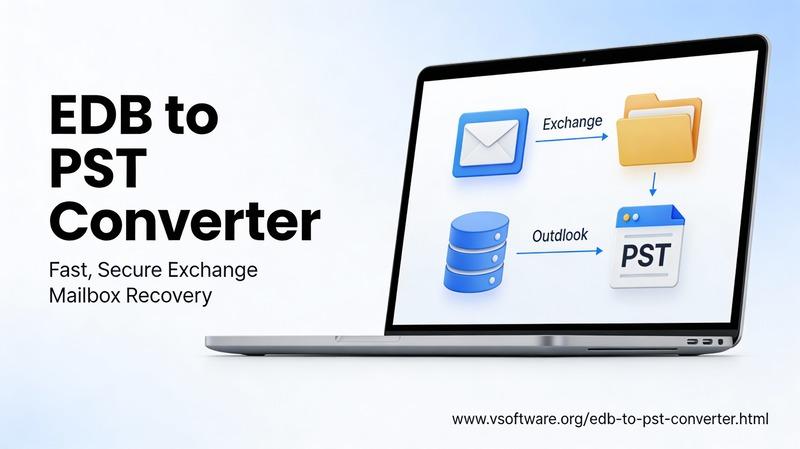
losing years of critical emails and contacts because your Exchange server crashed. This nightmare hits businesses every day. You need a reliable way to pull data from EDB files into PST format for Outlook. That's where an advanced EDB to PST conversion tool steps in. It handles migrations across all Exchange versions without a hitch. In this guide, we'll break down why these tools matter, what they offer, and how to use one right.
Understanding the EDB File Landscape and Conversion Challenges
EDB files store all your Exchange data, like emails and calendars. They tie closely to the server setup. Without the right tools, accessing them gets tough.
What Exactly is an Exchange Database (EDB) File?
An EDB file is the core storage for Microsoft Exchange Server. It uses a special engine called the Extensible Storage Engine to organize data. Think of it as a big digital filing cabinet that holds mailboxes, folders, and attachments. But you can't just open it in Outlook. It depends on the Exchange environment to work properly. If the server goes down, that data stays locked until you convert it.
These files grow large over time. A single EDB might hold terabytes from hundreds of users. Their structure includes tables for messages, indexes for quick searches, and logs for changes. Mess with it wrong, and you risk corruption. That's why pros turn to specialized software for safe handling.
Common Scenarios Driving EDB to PST Migration
Server failures often spark the need for EDB to PST conversion. Hardware crashes or power issues can make files inaccessible. You might face this during upgrades, like moving from Exchange 2010 to 2019. Companies merge, too, blending old systems into new ones. Or they shut down legacy servers to cut costs.
Data loss looms large without proper steps. Manual tries can wipe out attachments or corrupt folders. In 2024 alone, reports showed over 40% of IT teams dealt with Exchange downtime. An advanced tool turns these risks into smooth shifts. It saves time and keeps your operations running.
For small firms, it's about retiring old hardware. Big enterprises handle compliance audits that demand data exports. No matter the size, the goal stays the same: get everything into PST files intact.
The Pitfalls of Basic Conversion Methods
Native Exchange tools work for simple cases. But they falter with big or damaged files. You might end up with missing emails or broken folder trees. Metadata, like sender details or timestamps, can get twisted.
Basic methods ignore fragmentation. EDB files are split into pieces over the years, slowing access. Try exporting manually, and you'll hit limits on size or speed. Corruption adds another layer—free repair options often fail on severe issues.
Pros waste hours on these hacks. One study found manual migrations take 3-5 times longer than automated ones. That's downtime you can't afford. Advanced EDB to PST tools fix these gaps with smart tech.
Essential Features of an Advanced EDB to PST Conversion Solution
The best tools go beyond basics. They preserve every detail. Look for ones that fit your full setup.
Comprehensive Data Integrity and Structure Preservation
Top tools keep your data 100% true to form. They handle tricky parts like public folders, shared calendars, and task lists. Emails arrive with attachments, rules, and categories intact.
No more partial exports. These solutions map folder hierarchies exactly as they sit in Exchange. Contacts include photos and notes; journals track activities without gaps. It's like cloning your mailbox perfectly.
For teams, this means quick recovery. Users pick up where they left off in Outlook. Test it on a sample file first to see the fidelity.
Universal Exchange Version Compatibility
A solid advanced EDB to PST conversion tool works with every version. It reads files from Exchange 2003 up to 2019 and beyond. Old setups mix with new ones in many offices.
This matters for hybrid environments. Say your firm runs 2010 servers while testing 2019. The tool bridges them without rework. It decodes different file formats, from early JET engines to modern ones.
Check the support list before buying. Full coverage avoids surprises. In mixed shops, it cuts migration headaches by half.
Advanced Scanning and Recovery Algorithms
Corrupted EDB files scare most users. But these tools use deep scans to fix them. They offer quick mode for clean files and deep mode for damaged ones.
Log files help rebuild missing parts. The software checks headers, repairs indexes, and pulls data from fragments. It's not magic—it's smart algorithms that spot and mend errors.
One tool might recover 95% from a badly hit file. Use it before export to avoid further loss. This feature shines in disaster recovery.
Granular Selection and Filtering Capabilities
Pick what you need, not everything. Select single mailboxes or folders by date. Filter by keywords or types to slim down exports.
This speeds things up. A 50GB EDB shrinks to 10GB PSTs for key users. It also helps with compliance—export only sensitive data.
Set rules like "emails from 2020-2024" or "VIP contacts only." Save these for repeat jobs. Efficiency like this saves hours weekly.
Step-by-Step Process: Executing a Seamless EDB to PST Export
Start with prep to avoid issues. Follow these steps for success. An advanced tool makes it straightforward.
Preparation and Pre-Conversion Checks
First, dismount the EDB file from Exchange. This frees it up safely. Check your disk space—plan for PSTs at least as big as the original.
Back up the EDB right away. Copy it to another drive. Run a quick health scan with built-in tools to spot early problems.
Verify permissions. You need admin rights on the machine. These steps take minutes but prevent big headaches later.
Utilizing the Tool Interface for Mailbox Mapping
Load the EDB into the software. It scans and shows a preview of contents. Pick mailboxes and map them to PST files or Outlook profiles.
The interface feels like a file explorer. Drag folders or select all. Set output paths for each PST.
Watch progress bars for real-time status. Pause if needed. This mapping keeps things organized from start to finish.
Actionable Tip: Managing Large PST Files During Export
Big exports can bog down Outlook. Set the tool to split PSTs automatically. Aim for 10GB or 20GB chunks to stay under limits.
Choose Unicode for modern files; it's better for large sizes. This tip keeps imports smooth. No crashes from oversized files.
Test one split PST in Outlook before full run. Adjust limits based on your setup.
Post-Conversion Verification and Integration
After export, check your work. Ensure nothing's missing. Then move data to its new home.
Validating Data Completeness After Export
Compare original sizes to new PSTs. Count mailboxes and spot-check folders. Open samples in Outlook to verify that emails load correctly.
Look for key items: recent messages, attachments, calendar events. Tools often log what is exported. If counts match, you're good.
This step catches 90% of issues early. Spend 30 minutes here to save days of fixes.
Importing PST Data into Target Outlook Profiles or Office 365
Drag PSTs into Outlook for local use. Or use admin tools to upload to Exchange Online. For Office 365, the migration wizard handles batches.
Start small—import one user first. Sync calendars and contacts fully. It takes under an hour per profile.
Cloud setups archive old data easily. Keep PSTs as backups too.
Maintaining Security and Compliance During Transfer
Encrypt PSTs with passwords during creation. This locks out unauthorized eyes. Document each step for audits.
Use secure networks for transfers. In regulated fields like finance, add chain-of-custody logs. Tools often include these options built-in.
Strong habits here avoid fines. Data stays safe from start to end.
Conclusion: Achieving Future-Proof Data Mobility with Advanced Tools
EDB to PST conversion once meant risk and hassle. Now, advanced tools make it simple and sure. They handle all Exchange versions, fix corrupt files, and preserve every detail.
You gain control over migrations, no matter the reason—upgrades, failures, or mergers. Data moves freely to Outlook or the cloud. Downtime drops, and teams stay productive.

 English
 Arabic
 French
 Spanish
 Portuguese
 Turkish
 Dutch
Dutch
 Italiano
 Russian
 Romaian
 Portuguese (Brazil)
 Greek
Greek