


A Step-By-Step Guide to Laptop Trackpad Repair for Jumping Cursor Issues
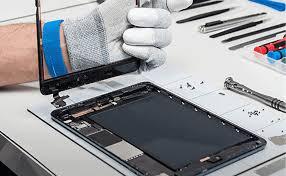
Is the cursor on your laptop moving around willy-nilly, jumping on the monitor, or not clicking at all? A damaged trackpad is more than merely an insignificant issue. It will come between you and work. It will make you less efficient. And it can be quite frustrating.
Before you make any plans to get a new computer due to common problems, consider the fact that most common problems can be fixed through laptop trackpad repair. This is a simple, step-by-step procedure to fix the problem and save you time and money.
Method 1: Software Reboot and Driver Re-Update
Start with these simple checks on your software before opening the machine. This is a safe and easy way to repair a laptop's trackpad.
-
A complete restart will fix any temporary software glitches. This will also reset your trackpad's drivers.
-
Gently wipe the trackpad's surface with a lintless, soft cloth. Assure that no water seeps in the edges.
-
Update Your Drivers by pressing Windows key + X and selecting "Device Manager." Expand "Mice" and "other pointing devices," and right-click the driver for your trackpad. Select the option to search automatically for updated software.
-
Click the driver once again, and then select "Uninstall." Windows will try to reinstall it automatically when you restart the laptop.
Method 2: Advanced Calibration and Settings
You should adjust your PC’s settings when system updates don’t work. Thus, these methods are best suited to resolve sensor issues. Meanwhile, here are the steps to follow:
-
To access trackpad settings, with the following sequence:
“Windows Settings- Bluetooth & Devices- Touchpad”
-
Find the sensitivity settings. If your cursor is jumping when you type, turn it up to "High sensitivity". This will improve palm rejection.
-
Some manufacturers include calibration software in their control panels, like Synaptics or ELAN. Check your laptop to see if it has this software. If so, run the calibration wizards.
-
In Touchpad Settings, toggle touchpad off. Wait for a moment, then toggle the touchpad back on. This will reset its function.
Method 3: Checking the Internal Connection
Opening your laptop is required for this method. If you are uncomfortable with this method, it is best that you seek professional assistance. This step is designed to solve the common problem of a faulty trackpad cable.
-
Turn off your laptop and unplug any power source. If your battery is removable, you can remove it.
-
Using your correct screwdriver and a nut driver, carefully remove the screws holding down the bottom of your laptop. Consult your manual or a teardown online guide for more specific instructions.
-
The trackpad should be directly under your palm rest. Find the thin ribbon cable that connects this to the motherboard.
-
Carefully remove the cable. Then, firmly reinstall. Secure the clip. This will often fix any issues that a slightly displaced cable may have caused.
-
Carefully replace the bottom panel and screw it in, and power up your laptop to test out the trackpad.
Final Words
A jumpy and unresponsive trackpad can make your laptop difficult to use, but this doesn't mean that your device is doomed. As we've discussed, the answer often lies in a systematized laptop trackpad fix. You can fix a large number of problems without spending any money by starting with simple software resettings and driver updates.
When software fails to function, check the internal connections, especially with the delicate ribbon cables. It is wise to seek professional laptop trackpad repair services, like iFix Laptop Repair, for those who lack technical expertise. This ensures a proper repair without risking additional damage.
Understanding these repair pathways will empower you to make informed decisions, saving unnecessary costs and restoring the smooth precision control you need at work and for play. Don't allow a faulty keyboard to hold you back. Act now and restore control over your cursor.

 English
 Arabic
 Spanish
 Portuguese
 Deutsch
 Turkish
 Dutch
Dutch
 Italiano
 Russian
 Romaian
 Portuguese (Brazil)
 Greek
Greek